Gift Buddy ships with its own guide: open Settings, tap How to use, and pick a question. Thirteen short walkthroughs with screenshots cover everything from the bottom menu to group gifts. This article is the same material in one place, so you can skim it before you install, or keep it open on a laptop while you set things up on your phone.
Where the guide lives in the app
The guide sits in Settings under Help, and it is also one tap away from any screen that is still empty. A new feed, an empty wishlist, or a gift list with nothing in it shows a quiet "How do I do this?" link that opens the guide on the matching topic instead of a generic table of contents.
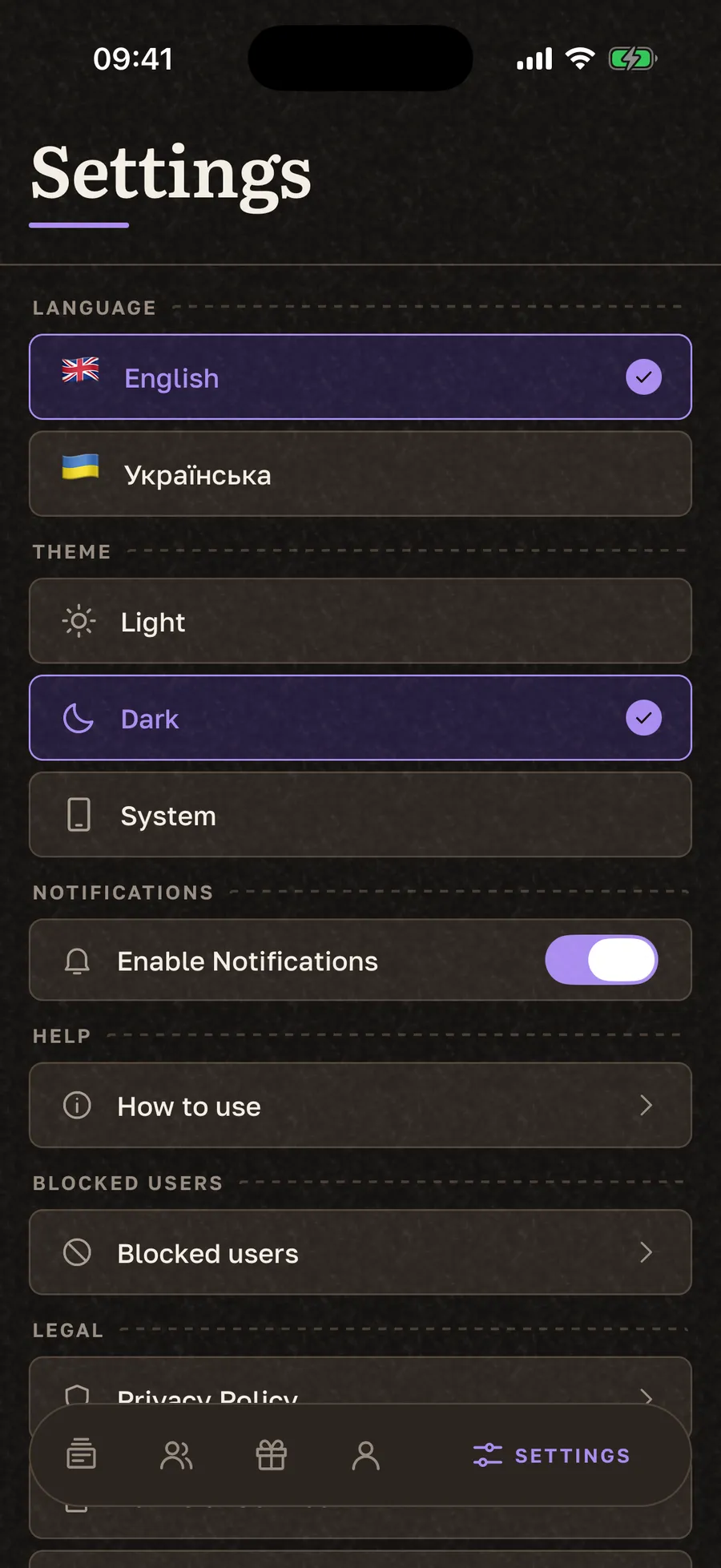
Each guide ends with a Try it button that drops you on the real screen, so you finish reading and start doing in the same motion.
What the five tabs do
The bottom menu has five tabs. Home is the feed of gifts from people you follow. Friends shows who you follow and who follows you, plus search. Gifts holds your own wishes, the gifts you are preparing for others, and your wishlists. Profile has your details and your ID. Settings covers language, theme, notifications and the guide.
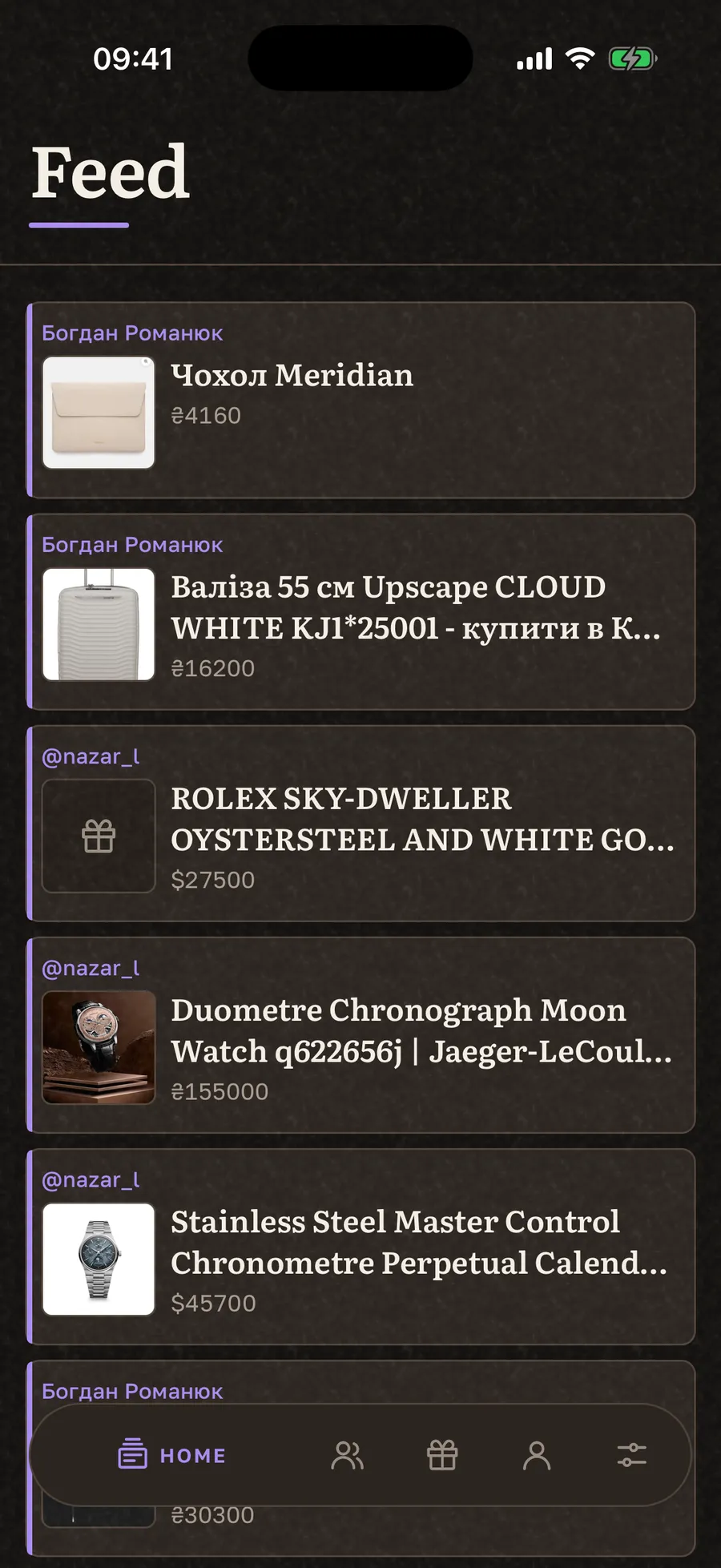
Some tabs have a second row above the menu. On the Gifts tab, that row switches between your wishes, the gifts you are fulfilling, and your wishlists.
How to add a gift in under a minute
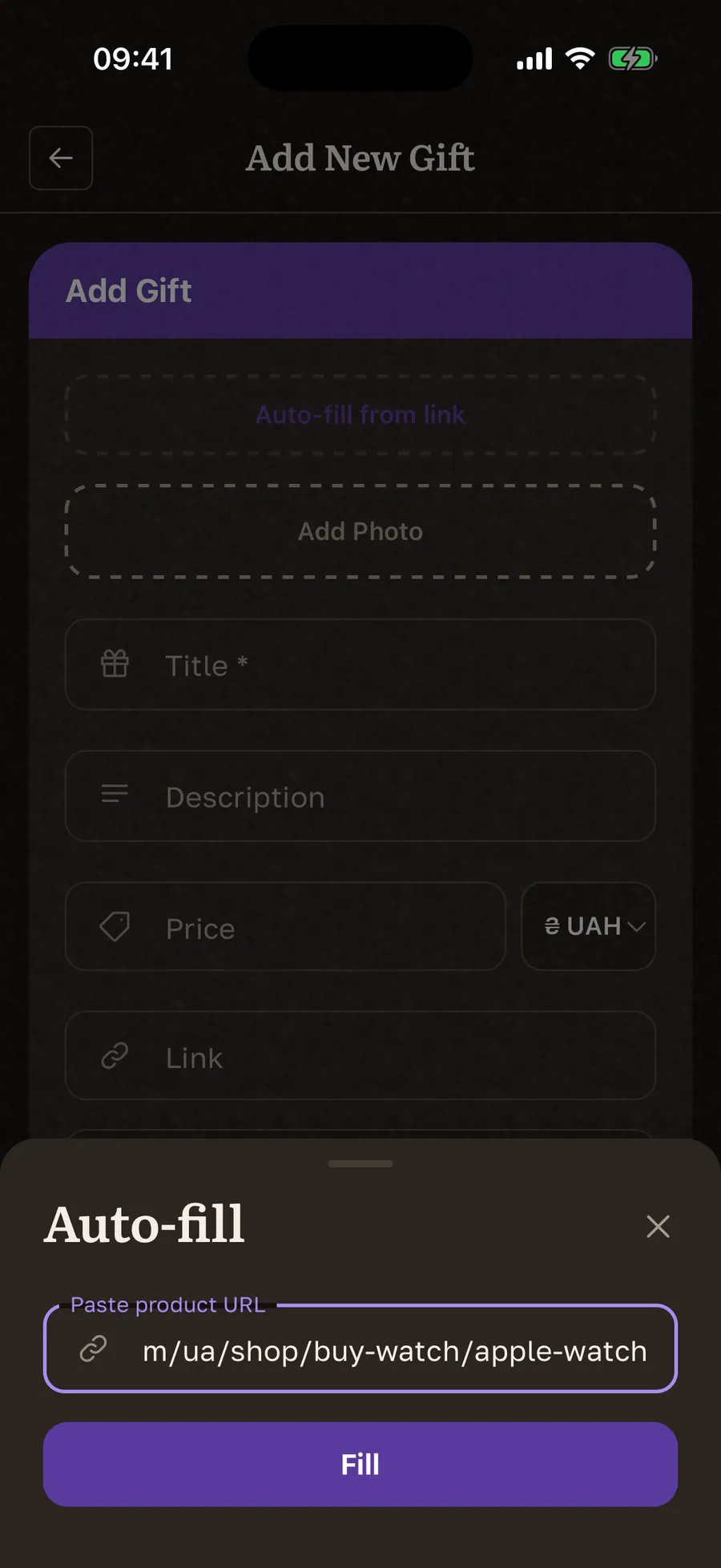
Open the Gifts tab, tap the plus button, and paste a link from any store. The app pulls the title, the photo and the price out of the page, so a typical gift takes one paste and one tap. Only two fields are required: a title and a category. Everything else is optional.
Saving uses a press and hold: keep your finger on the button until the ribbon ties. Let go early and nothing is saved. It feels unusual for about two gifts, then it stops you from firing off half-finished wishes.
If you want your list to work for the people reading it, our five tips for building a wishlist cover price ranges, how specific to be, and how often to clean it up.
Who can see your wishlist
A wishlist has a name, a symbol, an optional event date, and a visibility setting. Only me hides every gift in that list. The alternative is picking specific people, and the picker only offers followers, so a list never leaks to someone who is not connected to you.

Because of that, most people keep two or three lists: a birthday list open to close friends, a private one for ideas that are not ready, and a seasonal one they share more widely.
How to find friends
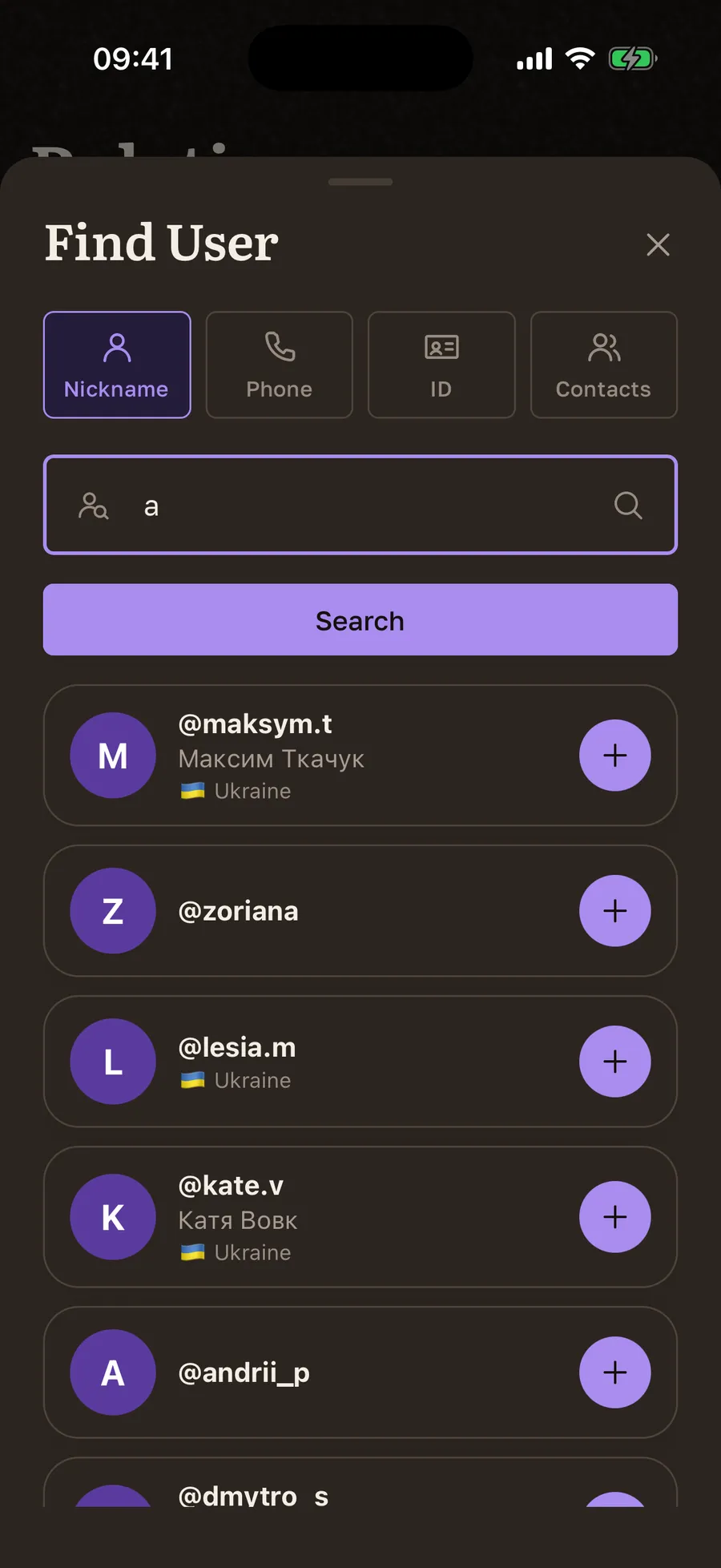
Search accepts a nickname, a phone number, or the eight-character ID from a profile, and it can also look through your contacts. Following is one-way and takes effect immediately. There is no request to accept, no waiting, and nothing to approve.
If someone should not see you at all, their profile menu has Block, which hides you from each other, and Report, which sends the profile to moderation. Blocked people are listed in Settings, so unblocking is two taps.
How to claim a friend's gift
Open a gift from the feed and decide how you want to appear. The toggle is off by default, which means the owner only sees that somebody is preparing this gift. Turn it on and they see your name. Then tap Fulfill, and the gift moves to the To Fulfill section of your Gifts tab, where you mark it Done or cancel it later.
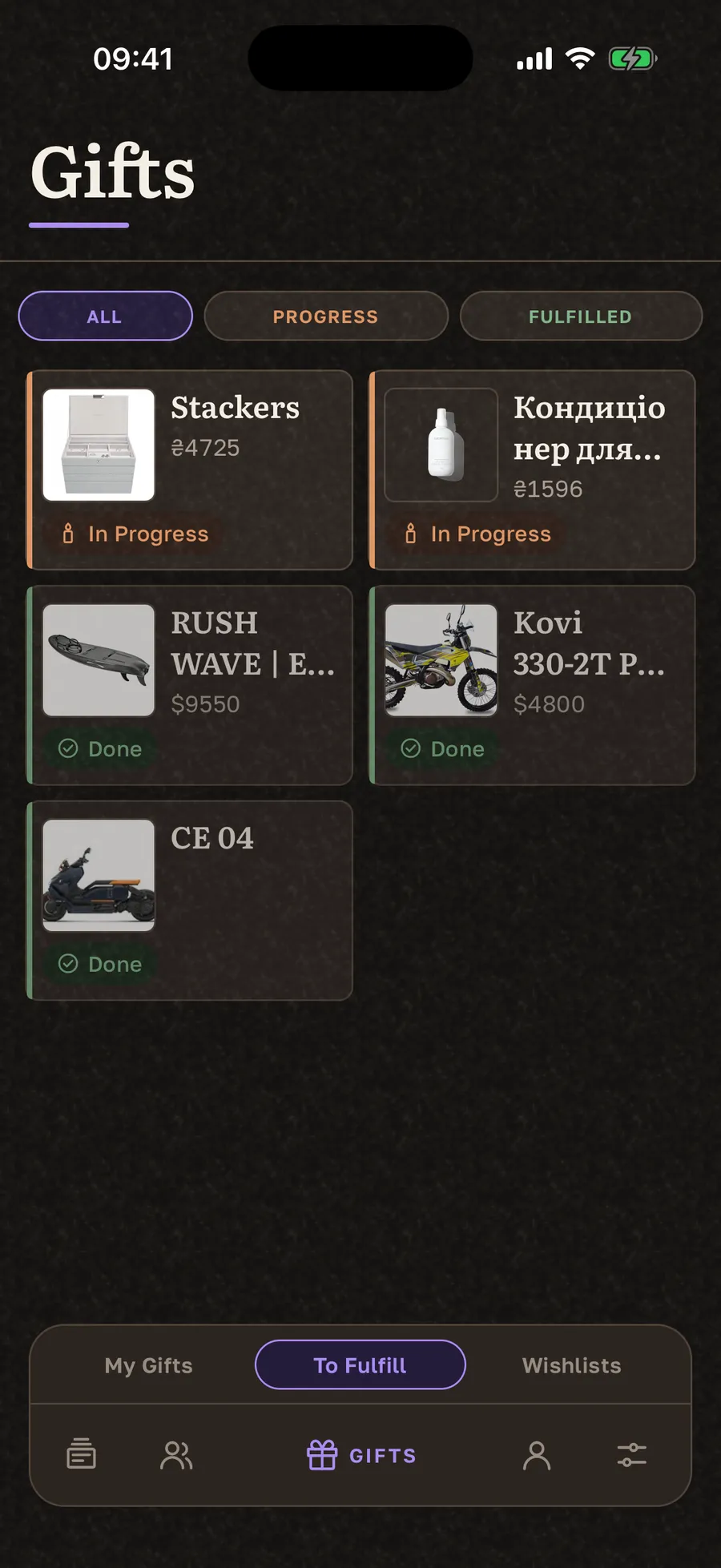
This is the mechanic that keeps two people from buying the same thing, and it is worth understanding before a busy birthday: we explained it in detail in how claiming prevents duplicate gifts.
Expensive gift? Open the gift and invite others to prepare it with you. Up to ten people can join, invitations go only to people who can already see that gift, and everyone confirms for themselves. Note that this is shared preparation, not shared payment. The app does not split or collect money.
When the gift has been handed over, the owner can tap Send thanks and write a note with a photo. Only the giver sees it.
Reminders, profile and plans
Two settings do most of the work here. Turning on notifications tells you when a friend adds a gift or fulfills one of yours. Adding your birthday to your profile is what triggers reminders for your friends: they get a nudge a month, two weeks, a week, and a day before.
The free plan covers five follows and nine of your own gifts, which is enough for one household. Paid plans raise both limits, and the top plan removes them. Gifts you have marked as done free up slots again, so the limit is about what is active, not about everything you have ever added.
Start with one wish
You do not need a full list to make the app useful. Add one gift, follow two people, and the feed starts doing its job. If you want to see what we are building next, the public roadmap is open, and our development update explains what shipped this year and what is still hard.
Gift Buddy is free to start on iPhone. The Android version is in testing.